
Test coverage and traceability are two of the most important metrics to track when testing. This post will cover why test coverage and traceability are essential in Jira and how to show test coverage, manage requirements traceability, and create a traceability report in Jira.
What does requirements traceability mean in Jira?
Requirements traceability is a way to measure test coverage and usually refers to tracking a business requirement across different stages of the development lifecycle (i.e., requirement gathering, design, development, testing, and maintenance.)
Traceability is essential for risk mitigation because it allows you to identify an item as problematic, understand what changes caused it, and determine how to address it. Full traceability is crucial to compliance and risk mitigation efforts, as seen in this case study from Convercent.
In Jira, traceability means being able to track each user story, requirement, or issue to a test and any resulting defects. You should be able to see linked test cases and results on individual requirements and generate a full traceability report showing your Jira issues and all their linked test artifacts at once.
What is test coverage in Jira?
Test coverage is a QA metric that measures how much of the product or application being tested is covered by tests. Test coverage also helps ensure that you have prepared, designed, and planned tests to cover every part of the application.
In Jira, test coverage helps us determine the number of tests run, passed, failed, blocked, etc. for every feature or product requirement we have written in Jira as a user story, epic, or issue. Typically, you can track Jira test coverage by linking user stories with their associated test cases and vice versa. Test coverage is vital to ensuring that no feature is going untested.
The idea is to know the percentage of requirements that have a test case written for them. The higher the percentage, the more confidence we can have that our testing activities will uncover any potential risks in our application.
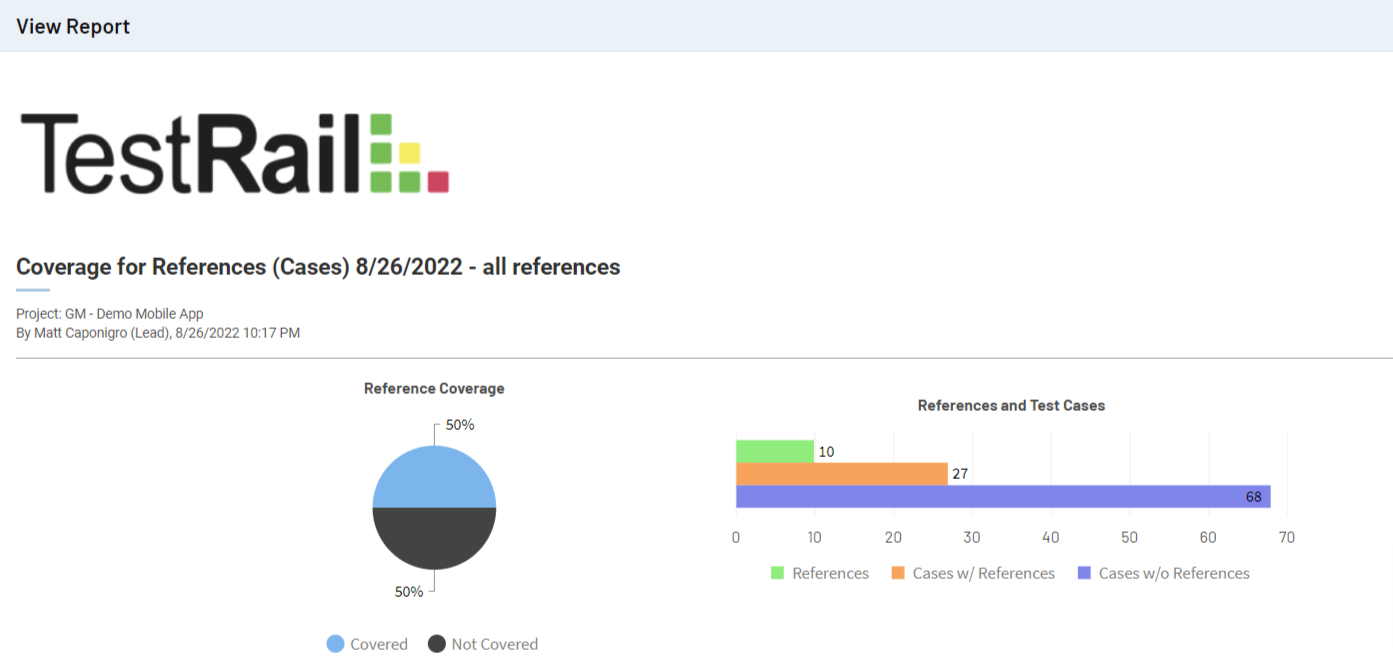
Tracking test coverage status throughout the software development life cycle (SDLC) allows you to identify areas where you don’t have adequate coverage and take action to avoid any decrease in quality. This also helps to ensure that defects will be kept from production. If defects exist in the application, they will be caught during the testing phase rather than when the product is already live. This provides a brief overview of the current health of the development project.

What is the difference between test coverage and traceability?
Test coverage measures how much of the product being tested is covered by tests. Typically, a requirement is considered “covered” only if it has corresponding test cases against it and test engineers assigned to it.
Traceability refers to the established connections between various requirements levels, risk analysis, designs, and verification. A traceability matrix serves to map the test cases to the requirements. It serves as a checklist wherein all the requirements are listed, and the test cases covering the corresponding requirement are listed against each requirement.
Why is it important to track test coverage and traceability in Jira?
But why should you be concerned? Here are the top seven reasons why tracking test coverage and maintaining traceability in Jira is important:
1. Maintaining forward and backward traceability ensures visibility
- Backward and forward traceability ensures that your requirements are covered by test cases.
- Traceability helps teams identify critical dependencies between requirements and other artifacts.
- It also helps identify gaps in coverage so that appropriate actions can be taken to resolve them.
2. Traceability helps manage continuous change
- Teams can easily identify related tasks and estimate the work needed to make the change.
- A traceability report enables you to quickly identify impacted artifacts, evaluate the impact of the change, and take appropriate action as project requirements change.
3. Traceability streamlines the auditing process
- Maintaining traceability is an essential tool that helps auditors easily review requirements and impacted artifacts.
- Traceability ensures that inconsistencies can be found and fixed early on with minimal cost and effort.
4. Traceability makes test management more effective
- Traceability makes test management more effective by helping test managers validate whether tests have covered the requirements.
- It also reduces the number of poorly maintained test libraries due to discrepancies.
- With traceability, QA leads can anticipate and proactively deal with changes in the requirements and ensure these changes are applied to the related test cases.
- It helps assess which parts of the system have been tested and which require additional testing.
- It also helps track a defect back to the original requirement and extract metrics at the defect level (i.e., defect leakage, defect rate, and other metrics).
5. Test coverage saves you time
- It allows you to identify gaps in requirements, defects, and test cases earlier on in your SDLC.
- Comprehensive test coverage creates more test cases — leading to fewer defects, less work that builds up during later stages, and better coverage.
- It also helps identify and eliminate duplicative test cases.
6. Test coverage mitigates the risk of new releases
- Good test coverage ensures fewer defects at production.
- It can boost the quality of releases and overall customer satisfaction.
- Comprehensive test coverage ensures that no requirement goes by untested and boosts your confidence in your testing activities.
7. Promotes smoother testing cycles
- Good test coverage helps your process be more reliable and less prone to error by highlighting areas not covered by a set of test cases.
- It allows you to determine how much of a piece of software is covered by a unit test or test suite by evaluating test coverage.
- It helps determine if you lack tests for any code or functionality.
- It helps with test case prioritization and regression testing.
- Good test coverage also helps save time by helping you to identify defects earlier, resolve defects faster, and maintain a firm grasp on the project’s scope.
How to create test coverage and traceability reports in Jira
To create test coverage or traceability reports, you will first need to have requirements or user stories and test artifacts like test cases, tests, and defects.
Many teams that use Jira try writing test cases as subtasks in issues or creating custom issue types for testing. However, Jira is not designed for test management and doesn’t come with any kind of built-in test coverage or traceability reporting. In this blog post, we will use TestRail, a dedicated test management tool that integrates with Jira, to create test coverage and traceability reports against user stories tracked in Jira.
Step 1: Identify and review product requirements in Jira
Most teams that track requirements or development tasks in Jira do so with issue types like epics or user stories. Your team may write detailed descriptions of the functions or capabilities the final product should have, or they might be defined as an informal, general explanation of a software feature written from the end user’s perspective.
The first step to creating a test coverage or traceability report is identifying which user stories have been prioritized for your next sprint or release and need to be tested.
Step 2: Write test cases for each requirement
When writing test cases for each requirement, there are a few options:
1. Write test cases as sub-tasks on an issue in Jira
2. Create a custom testing issue type or use a Jira add-on
3. Use a dedicated test case management tool
Ultimately, if you are trying to report on test coverage or traceability, the fastest way will be to use a test management tool with built-in coverage and traceability reporting.
As you are writing your test cases, make sure to link any requirements from your external tool. In TestRail, for example, you can copy/paste a Jira issue ID for your user stories or requirements into the References field on test cases or test results artifacts to indicate that the test is related and provide two-way visibility between the two platforms.
Step 3: Create a test coverage report
Creating a test coverage report will be a manual effort if you write your test cases as Jira issues or sub-tasks. In this scenario, the fastest way to create a coverage report would most likely be to copy the issue IDs for your user stories into a spreadsheet, then create a second column to write down the IDs for each of the test case issues you’ve created and linked to each user story, issue by issue. You could use spreadsheet functions to count up how many user stories IDs also have test case issue IDs and how many do not, and create a chart if you wanted.
For detailed steps to quickly create a coverage report in TestRail, check out TestRail’s test coverage report documentation or watch this video How To Set Up Test Coverage with Jira.
Step 4: Run tests and log defects in Jira
Once you have created enough test cases to adequately cover your full application, you can start running tests.
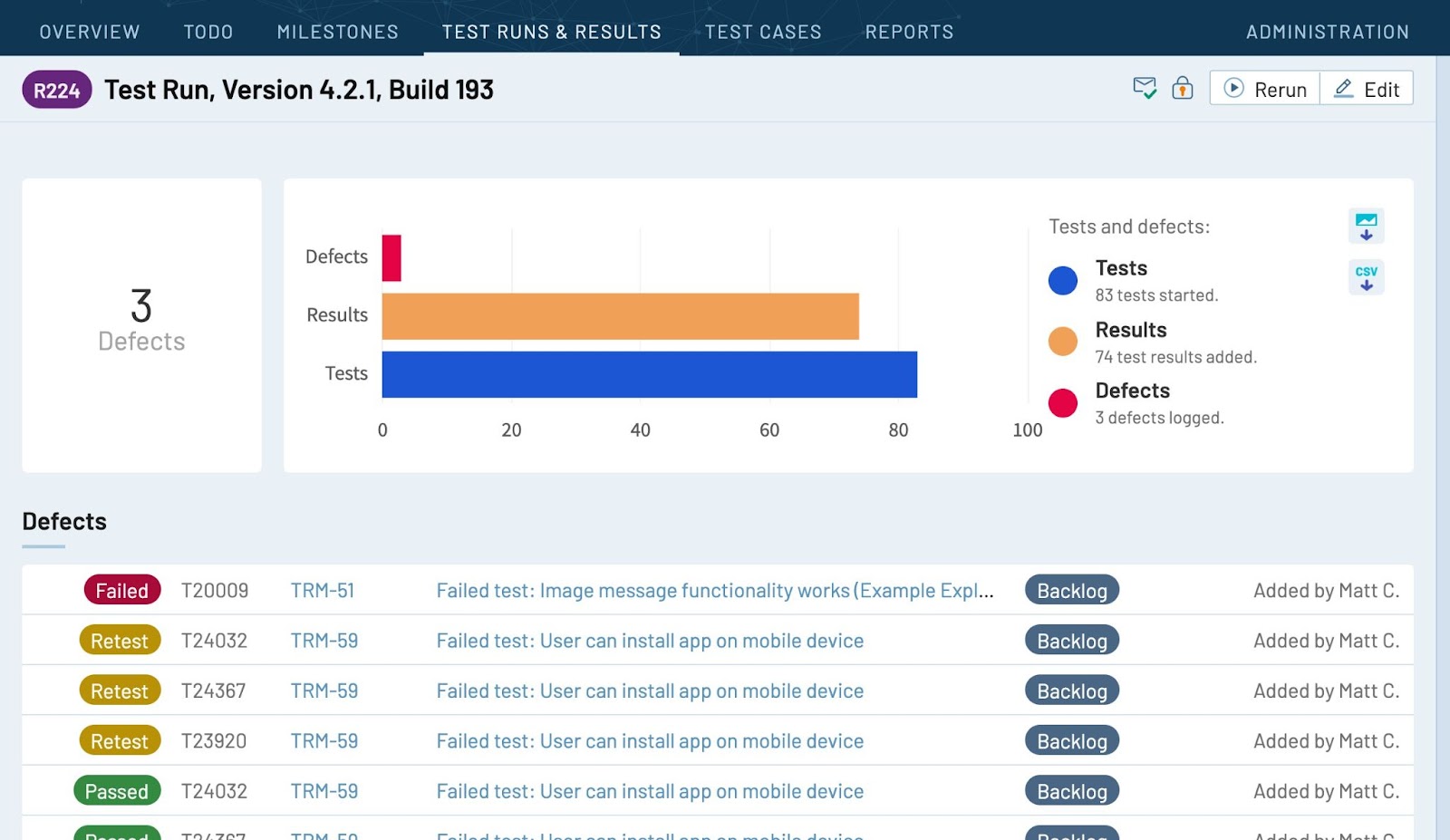
As you run your tests, it is important to link any defects you discover to ensure full traceability. In TestRail, when you add a test result in a run or plan, you can use the Defects field to link a defect or bug report from Jira or even create a new issue in Jira automatically by pushing a defect from TestRail.
Step 5: Create a requirements traceability report
Finally, once you have logged some test results or are trying to check whether a release is ready to deploy, you can generate a traceability report.
Manually create a traceability matrix
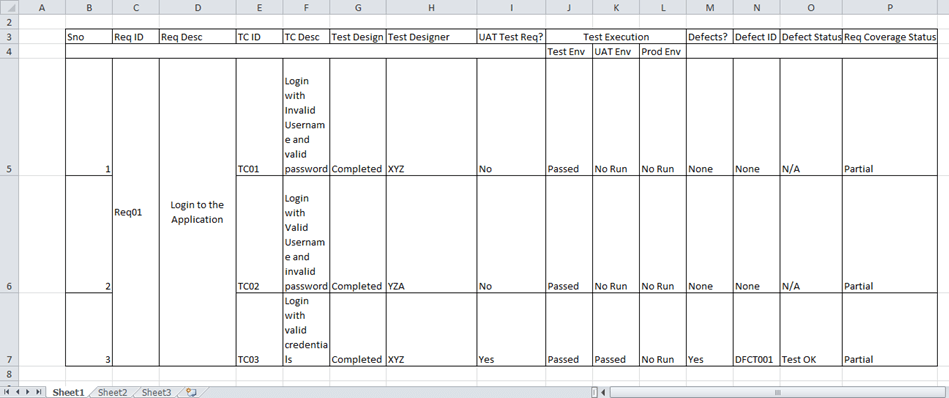
If you are creating a traceability report manually, you will most likely want to use a requirements traceability matrix (RTM) using an Excel spreadsheet or Google Sheets. A requirements traceability matrix can show the following:
- User Acceptance tests that need to be done by the users and User Acceptance testing status
- Execution status for the specific test cases
- Design status for the specific test cases
- Requirement coverage in the number of test cases
- Related defects
- The current state of testing
Here are the steps to create a basic requirements traceability matrix. The steps are as follows:
1. Define your goal
Example: “I want to create a traceability matrix to know which tests and issues are impacted if a requirement changes.”
2. Gather all artifacts (i.e., Requirements, Test Cases, Test Results, Issues…etc.)
3. Create a template for the RTM by adding a column for each artifact
4. Add Requirements from the Requirement Document
Add Requirements descriptions and IDs
5. Add Test Cases from the Test Cases Document
Add Test cases that correspond to the requirements mentioned in the previous step
6. If applicable, add Test Results and Issues
Add the test results that correspond to the test cases mentioned in the previous step
7. Update the matrix when required
Update the matrix whenever there is a change in any artifacts to reflect the project’s current health.
Here is an example of a traceability matrix in a Google or Excel spreadsheet (Note: For various project iterations, there will usually be more columns).
Auto-generate a requirements traceability report in TestRail
To auto-generate a requirements traceability report in TestRail, start by opening a user story and clicking on the TestRail cases field to automatically open a new panel with the current test cases for this specific user story.
- Start adding test cases from Jira
In Jira, click the button to add a test case and select the project you want your test case created in. From here, you will be redirected to the TestRail test case creation page with the user story issue ID already in place in the references field.
- Edit the Jira user story directly in TestRail
Next, your must name this first case. For this example, we will name this first test “successfully log in” and immediately save it by clicking “Add test case”.
The reference is now displayed as a link that you can hover over and edit. By clicking the reference, you’ll be redirected to Jira where you can open the TestRail cases panel and immediately see that your test case is now covering the user story through the reference on TestRail. Plus, if you click the test case link, you’ll navigate to the test case details in TestRail.
Note: The fields displayed can be customized when configuring the Jira integration on TestRail.
- Quickly add a reference to the multiple test cases
Now you can open the test cases list page and see your test case there. While on this page, you can quickly outline test scenarios and add the user story reference in bulk.
In this example, to add a couple of test cases to cover our login user story, we select “failed to login with invalid email,” “Failed to login with invalid password,” and “fail to log in without credentials.” In this example, we don’t have any associated references yet, but we can select all the test cases to quickly add the reference in bulk. To do this, just select the cases, click Edit, and then Edit selected.
Lastly, check the references field, add the reference to your login user story, and save the changes. You have now created traceability between these tests and our user story.
If your team uses Jira to manage software development, test coverage and traceability are two of the most important metrics to report on and track. Traceability helps to ensure visibility, manage continuous change, streamline the auditing process, and make test management more effective overall. Moreover, test coverage saves you time, boosts ROI, and promotes smoother testing cycles. Together traceability and test coverage help minimize risk and ensure that your QA testing process is comprehensive and secure.
To learn more about how you can build an efficient testing process, track coverage, and build comprehensive traceability between development and QA using Jira and TestRail, check out TestRail Academy’s free online course TestRail & Jira.